My Schedule
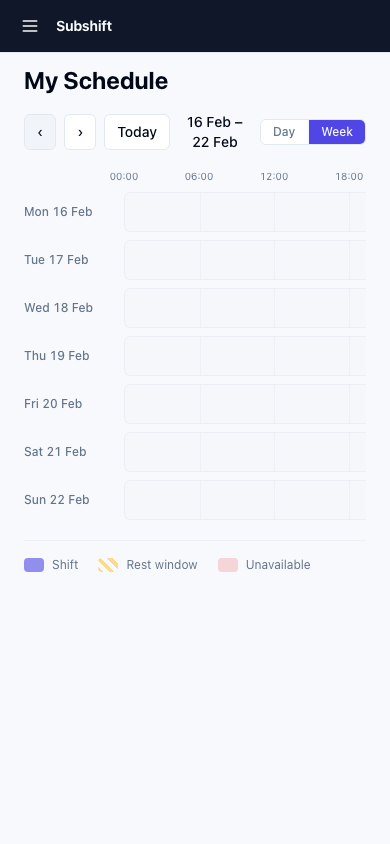
My Schedule is a visual, interactive timeline showing your upcoming and past shifts alongside the mandatory rest windows and unavailability periods that surround them. It gives you a clear picture of your week at a glance — without needing to count hours or work out rest gaps manually.
Opening My Schedule
Tap Schedule in the bottom navigation bar.
Day and week view
Use the Day / Week toggle at the top of the page to switch between views:
- Week view — a seven-day overview. Useful for planning ahead and seeing how your shifts are distributed across the week.
- Day view — a detailed view of a single day, with finer time resolution. Useful for checking the exact start and end times of shifts and rest windows.
Tap the arrow controls or swipe left and right to navigate forward and back by day or week.
What the blocks mean
Three types of block appear on the timeline:
- Shift blocks — confirmed placements. Colour-coded by status: upcoming shifts are shown in blue, completed shifts in grey, and cancelled shifts are crossed out.
- Fatigue rest windows — the mandatory rest period that follows a shift based on your agency's fatigue rules for your position. During a rest window, you are not eligible to start another shift. The rest block shows the earliest time your next shift could begin.
- Unavailability periods — times you have marked as unavailable in the Availability section of the app.
Note
Viewing details
Tap any block on the timeline to see a detail card:
- Shift block: position, client site, start time, end time, and current status.
- Rest window block: the fatigue rule that generated this rest period, the start and end of the rest window, and the shift it follows.
- Unavailability block: the start and end of the unavailable period and the reason you entered (if any).
Fatigue opt-out
If your agency has marked a fatigue limit as opt-out eligible, you will see it listed in Settings → Fatigue. You can turn the toggle off to opt out of that specific limit. This affects which shifts you are eligible to be offered — it does not affect any shift you have already accepted.
Tip
Related
- Shifts — the shifts list with upcoming, available, and past tabs
- Availability — set when you are free to receive shift offers
- Accepting a shift — respond to a shift offer