Creating a fatigue rule
The quickest way to create a fatigue rule is to clone one of the built-in templates and adjust it to your needs. You can also build a rule from scratch if none of the templates fit.
Option A — clone a template (recommended)
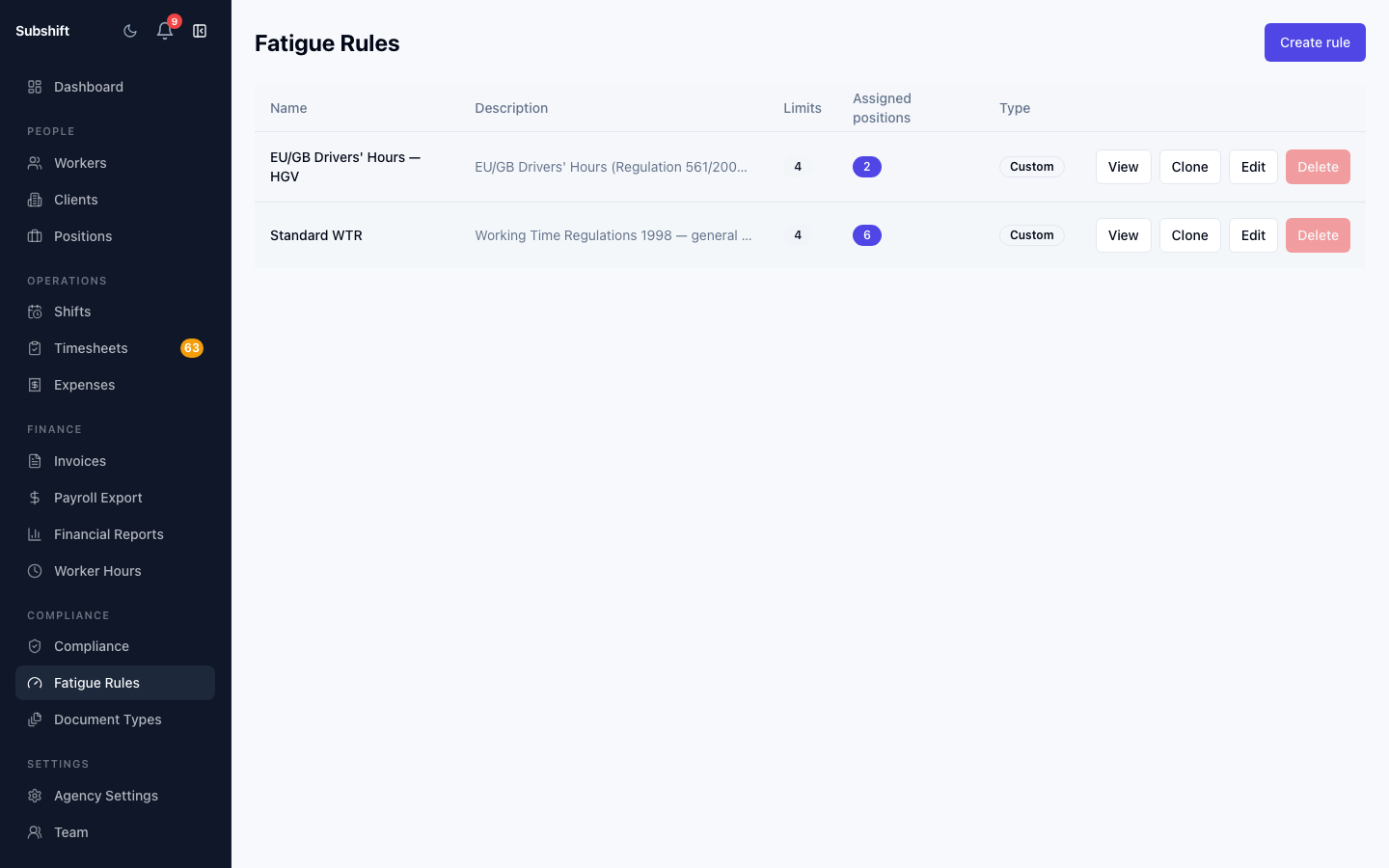
- Go to Fatigue Rules in the sidebar.
- Find the template you want to start from (EU/GB Drivers' Hours or Standard WTR).
- Click Clone on the template row.
- A new rule is created as a copy of the template. You are taken to the rule editor.
- Give the rule a descriptive name — for example, "WTR — Care workers" or "Drivers' Hours — Class 1".
- Adjust the limits as needed (see below).
- Click Save.
Option B — create from scratch
- Go to Fatigue Rules in the sidebar.
- Click Create rule.
- Enter a name for the rule.
- Add one or more limits (see below).
- Click Save.
Configuring limits
Each rule can have one or more limits. Click Add limit to add a new row. For each limit, choose the type and fill in the parameters:
Window limit
Caps total working hours within a rolling window.
- Max hours — the maximum number of hours allowed in the window (e.g. 48).
- Window days — the size of the rolling window in days (e.g. 7 for a weekly limit).
- Severity — BLOCK or WARN.
Minimum rest
Requires a minimum gap between the end of one shift and the start of the next.
- Min rest hours — the minimum rest period in hours (e.g. 11 for daily rest).
- Trigger — when the rest requirement applies: after every shift (daily) or after the weekly limit is reached (weekly).
- Severity — BLOCK or WARN.
Max consecutive days
Limits the number of consecutive calendar days a worker can be placed on shifts without a rest day.
- Max days — the maximum number of consecutive working days allowed (e.g. 6 for a required weekly rest day).
- Severity — BLOCK or WARN.
Max shift duration
Caps the length of any single shift.
- Max minutes — the maximum shift duration in minutes (e.g. 600 for a 10-hour cap).
- Severity — BLOCK or WARN.
Worker opt-out
Each limit has a Worker can opt out checkbox. When checked, workers will see this limit in their app and can choose to opt out of it individually — for example, to record a signed WTR 48-hour opt-out agreement. Leave this unchecked for hard legal limits that should always apply regardless of worker preference.
Tip
Editing an existing rule
- Go to Fatigue Rules in the sidebar.
- Find the rule in the list (only custom rules can be edited — templates are read-only).
- Click Edit on the rule row.
- Make your changes and click Save.
Note
Deleting a rule
A custom rule can only be deleted if it is not assigned to any positions. If the rule is in use, remove it from all positions first, then return to the Fatigue Rules list and click Delete.
Related
- Fatigue rules overview — how fatigue rules work and the four limit types
- Assigning rules to positions — bind your new rule to a position
- Overriding a block — what happens when a BLOCK breach occurs